 TauPDF
Edit text and images in a PDF
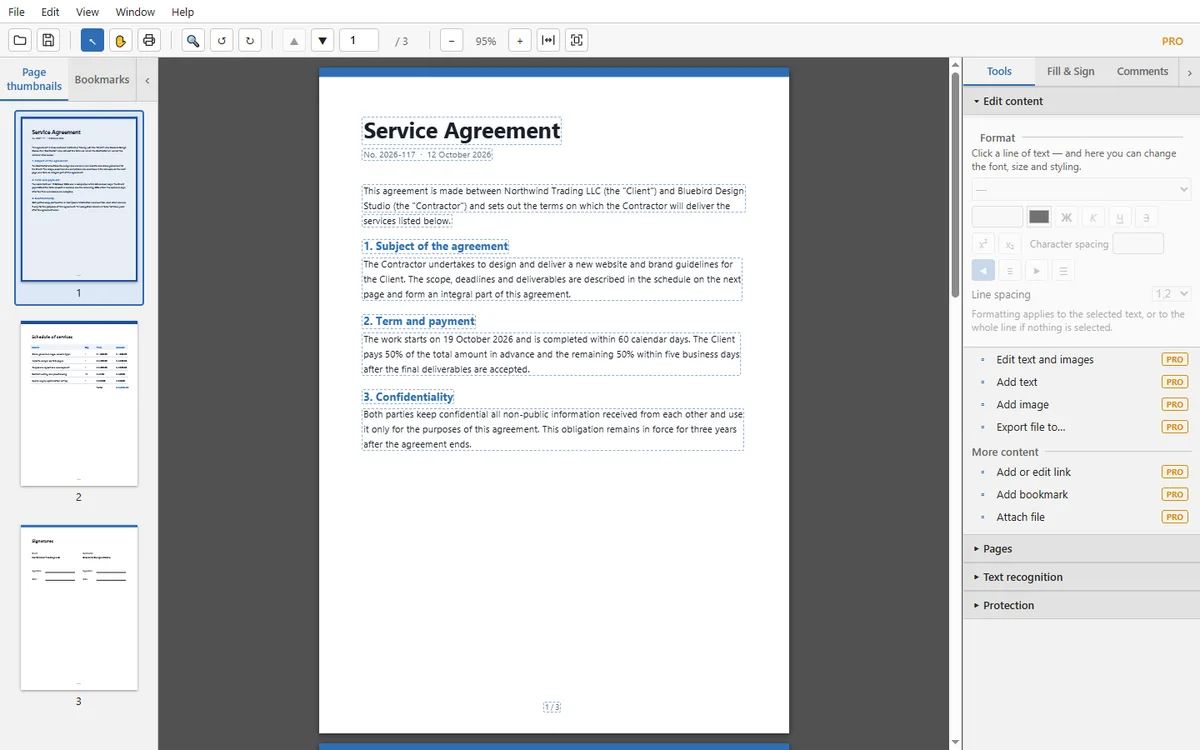
Click a line or a paragraph on the page and type. Add your own text, pictures, links and bookmarks. Everything happens on your computer.
What you can do
- Change a line or a whole paragraph of text directly on the page.
- Choose font, size and colour; bold, italic and underline; alignment, line spacing and character spacing.
- Add new text blocks and images (PNG or JPEG), then move and resize them.
- Add links to web addresses or to pages of the same document.
- Add bookmarks and attach files to the document.
How to edit a PDF
- Open your PDF: File → Open, or drag the file into the window.
- In the Tools panel choose Edit content → Edit text and images.
- Click the text you want to change and type. The Format panel sets font, size and style.
- Save with Ctrl+S, or use Save as to keep the original file untouched.
Questions and answers
Can I edit a scanned PDF?
A scan is a picture of a page, so its text cannot be edited directly. Text recognition (OCR) makes the text searchable and copyable, but the picture of the page stays as it is.
Is my file uploaded anywhere?
No. Editing happens on your computer and the file never leaves it.
Can I undo a mistake?
Yes. Use Edit → Undo or press Ctrl+Z.
More you can do with TauPDF
Organize PDF pages: merge, split, rotate, crop
Combine several files into one, split a long document, extract or delete pages, and add headers, footers or a watermark. No upload needed.
Learn more →Recognize text in scanned PDFs (OCR)
Turn scans and photos of documents into searchable, copyable text. Recognition runs on your computer, so your documents stay private.
Learn more →Fill in forms and sign PDF files
Type into forms, add check marks and dates, and place your signature or initials, drawn, typed or uploaded as an image.
Learn more →Protect PDFs: passwords, redaction and clean-up
Lock a document with a password, black out confidential text for good, and remove hidden information before you share a file.
Learn more →Convert PDF to Word, Excel, PowerPoint or images
Save a PDF as an editable Office document, plain text or pictures, or make the file smaller. Conversion runs on your computer.
Learn more →